> For the complete documentation index, see [llms.txt](https://docs.atlas.design/llms.txt). Markdown versions of documentation pages are available by appending `.md` to page URLs; this page is available as [Markdown](https://docs.atlas.design/atlas-ai-studio-overview/node-index/api-nodes.md).
# API Nodes
API Nodes turn any Atlas workflow into a callable REST endpoint that runs from inside Unity, Unreal Engine, Blender, or any custom integration. Use them to deploy production-grade AI workflows directl
API Nodes are how Atlas workflows become production infrastructure. Build a workflow once in the Atlas visual editor, mark its inputs and outputs with API Nodes, and the workflow is instantly callable as a versioned REST endpoint. The same workflow now runs from Unity, Unreal Engine, Blender, an automation pipeline, or any custom backend that can make an HTTP request.
This page covers when to use API Nodes, the available input and output types, how to export a workflow as an API, common integration patterns, and the most frequent pitfalls when wiring Atlas into a production game pipeline.
## When to use API Nodes
Use API Nodes whenever the workflow needs to run outside the Atlas web UI:
* **Engine integration.** Trigger 3D asset generation from inside Unreal Engine or Unity. Players, designers, or game systems request assets on demand; Atlas executes the workflow and returns the result.
* **Batch processing.** Run the same workflow over hundreds or thousands of inputs (e.g., generating variants of a hero asset, processing a backlog of concept art). External scripts orchestrate the calls and collect results.
* **UGC pipelines.** Power player-generated content features where users enter prompts and the game returns custom 3D assets in real time.
* **Automation chains.** Wire Atlas into automation tools like n8n, Zapier, or custom CI/CD pipelines for asset processing as part of larger workflows.
* **Headless production environments.** Run Atlas workflows from Blender scripts, command-line tools, or server-side processes where opening the web UI is impractical.
If the workflow only runs interactively in the Atlas visual editor, API Nodes are not required. They become necessary the moment the workflow needs to execute from outside the editor.
There are two categories of API Nodes:
1. **Input API Nodes** — define what data your external request can send into the workflow.
2. **Output API Nodes** — define what the workflow returns after execution.
Once these nodes are placed, the workflow can be exported as an API directly from the toolbar.
### Input API Nodes
Input API Nodes replace native inputs so that external applications can provide data through the API.
#### Available Input Types
* **API Input Text** — accepts string data
* **API Input Number** — accepts numeric values
* **API Input Boolean** — accepts true/false flags
* **API Input Image** — accepts a single image file upload
* **API Input Images** — accepts multiple image file uploads
* **API Input Mesh** — accepts a single mesh file (GLB)
* **API Input Meshes** — accepts multiple mesh files (GLB)
* **API Input Audio** — accepts audio file uploads
* **API Input Video** — accepts video file uploads
* **API Input PDF** — accepts PDF file uploads
* **API Input USDZ** — accepts USDZ package uploads
* **API Input EXR** — accepts EXR files
* **API Input Animation** — accepts animation data uploads
* **API Input Scene** — accepts a full scene upload
* **API Input Conversation** — accepts conversation/dialogue data
Use these nodes when preparing your graph for external execution.
### Output API Nodes
API Output Nodes define what the API returns when the workflow completes.
#### Available Output Types
* **API** **Output Text**– returns text strings
* **API** **Output Number**– returns numeric values
* **API** **Output Boolean**– returns true/false results
* **API Output Image** – returns a generated image
* **API Output Images** – returns multiple generated images
* **API Output JPEG** – returns the result as a JPEG file
* **API Output WebP** – returns the result as a WebP file
* **API Output AVIF** – returns the result as an AVIF file
* **API Output TIFF** – returns the result as a TIFF file
* **API Output TGA** – returns the result as a TGA file
* **API Output SVG** – returns vector graphics
* **API Output EXR** — returns EXR files
* **API** **Output Mesh**– returns a single mesh file
* **API Output Meshes** – returns multiple mesh files
* **API Output USDZ** – returns a USDZ package
* **API Output Audio** – returns generated audio
* **API Output Video** – returns generated video
* **API Output PDF** – returns a PDF file
* **API Output Animation** – returns animation data
* **API Output Scene** – returns a full scene
* **API Output Conversation** – returns conversation/dialogue data
* **API Output FBX** – returns FBX file
Replace the final node’s output with the corresponding API Output Node to expose your result.
### Exporting Your Custom Workflow as an API
After setting the inputs and outputs with API Nodes, you can export your workflow as an API:
#### Steps
1. Build your workflow as usual.
2. Replace **all required inputs** in your workflow with the corresponding **Input API Nodes**.
3. **Add** an Output API Node and connect it to your final output node to expose the result through the API.
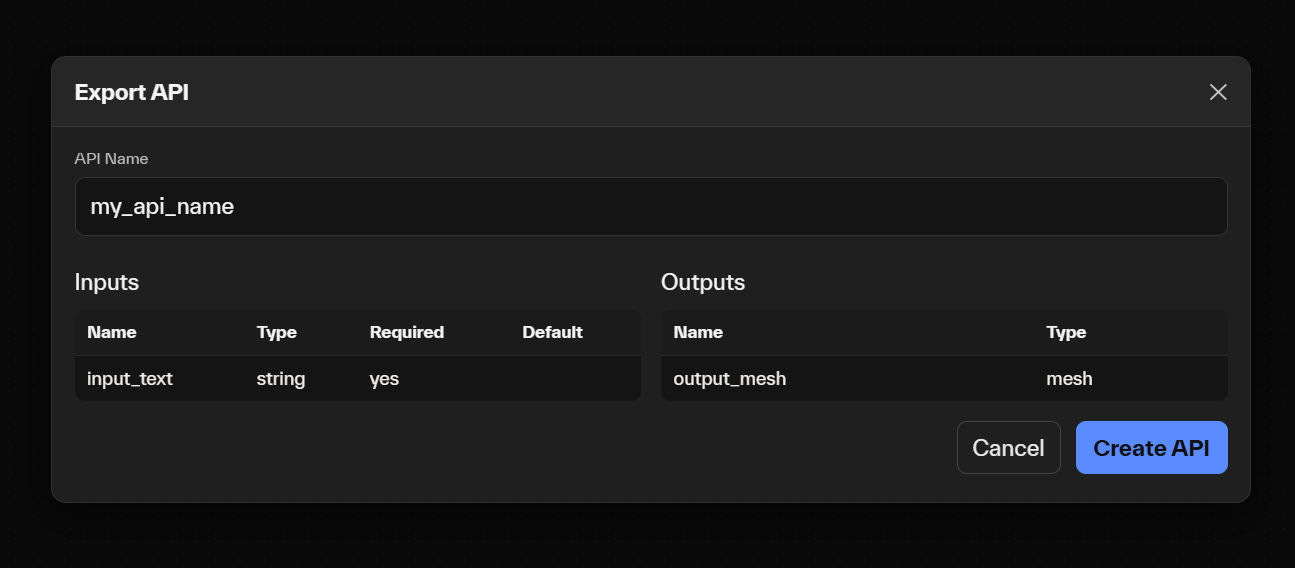
4. Click the **Export API** icon in the toolbar.
5. Enter a name for your API.
6. Click **Create**.
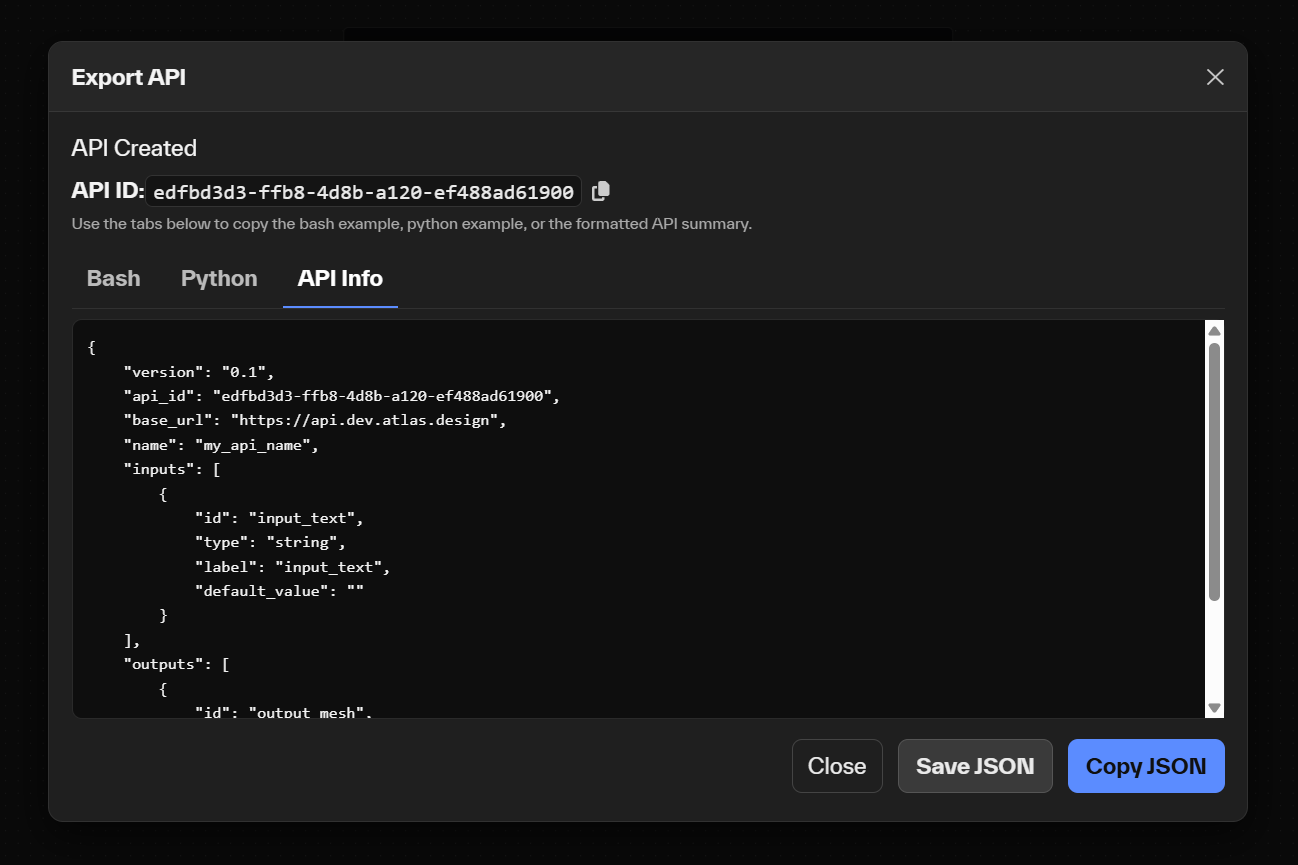
The platform then generates:
* **Bash example**
* **Python example**
* **Full API JSON specification**
* **Your API ID**
These can be used immediately to call your workflow programmatically.
### Using the Generated API
Once created, the API can be called from any environment:
* Python scripts
* Bash / curl
* Web backends
* Unity or Unreal Engine tools
* n8n or automation pipelines
* Blender scripts
* Custom UIs
Your API ID ensures that the workflow is executed with the exact graph and nodes you configured.
## Common integration patterns
A few patterns that tend to work well in production:
* **In-engine generation.** A game client (Unreal Engine, Unity) makes an HTTP request to the Atlas API endpoint, passes the player's prompt or reference image, waits for the workflow to complete, then loads the returned `.glb` directly into the scene. Best for slower, higher-quality generation moments. Pair with a loading state or async pattern in the engine to keep the experience smooth.
* **Background processing.** A server-side job queue (your own backend, or a tool like n8n or Temporal) calls Atlas in the background, stores results in a CDN or asset bucket, and serves them to clients on demand. Best for batch generation, UGC moderation pipelines, or pre-generation workflows.
* **Designer-facing tools.** A custom UI (web app, internal tool, or Blender plugin) wraps the API for designers, art directors, or technical artists to use without writing code. The tool sends parameters to Atlas, displays results inline, and gives designers a friction-light way to iterate.
* **Hybrid live and pre-generated.** Pre-generate a catalog of assets via batch API calls, then use live API calls only for player-specific or rare-case variants. Reduces latency and cost.
## Common pitfalls
Mistakes that consistently cause trouble when wiring up API Nodes:
1. **Forgetting to replace native inputs with API Input Nodes.** If a workflow still relies on the visual editor's interactive inputs (e.g., a text input typed directly into the node), the exported API has no way to receive that data. Every parameter the external caller needs to control must be wired to an API Input Node.
2. **Skipping the API Output Node.** Without an API Output Node attached to the final result, the API completes but returns nothing useful. Always connect the final node of your workflow to an API Output of the matching type (mesh, image, text, etc.).
3. **Hard-coding values that should be parameters.** If your workflow uses a fixed text prompt, fixed dimensions, or fixed model selection internally, the API will produce the same output every time. Promote anything that callers might want to vary into an API Input Node.
4. **Not versioning workflows before exporting.** Each export captures the workflow's exact graph state. If you later modify the workflow in the editor, the deployed API still runs the old version. Re-export to roll out changes, and consider keeping the old API ID alive during transitions so dependent clients have time to migrate.
5. **Treating the API as synchronous when it isn't.** Some Atlas workflows take 30 seconds or longer (especially 3D generation). Engine integrations should treat API calls as async by default, with proper loading states, timeout handling, and error fallback.
## Related nodes
* [Input Nodes](/atlas-ai-studio-overview/node-index/input-nodes.md) — the in-editor counterparts to API Input Nodes
* [Image Nodes](/atlas-ai-studio-overview/node-index/image-nodes.md) — workflows commonly exposed via API for image generation and processing
* [Mesh Nodes](/atlas-ai-studio-overview/node-index/mesh-nodes.md) — 3D generation and mesh processing workflows for engine integration
* [Utility Nodes](/atlas-ai-studio-overview/node-index/utility-nodes.md) — routing, conditionals, and orchestration patterns inside API workflows
* [3D Generation Best Practices](/atlas-ai-studio-overview/node-index/mesh-nodes/3d-generation-best-practices.md) — patterns for building robust 3D-generation APIs
## Frequently asked questions
**How does the Atlas API handle calls? Synchronous or asynchronous?**
The API is **async-only by design**. A workflow submission returns an `execution_id` immediately; you then poll the status endpoint (`/{version}/api_status/{execution_id}`) until completion, and download the output when ready. There is no blocking synchronous call. Plan your engine or backend integration around this pattern from the start.
**Can I call the same Atlas API from multiple engines and tools simultaneously?**
Yes. Once exported, the workflow is a standard REST endpoint and can be called from any HTTP-capable environment in parallel. The same workflow can serve Unity, Unreal, Blender, and a web backend at the same time.
**How long does an API call take?**
Latency depends on the workflow. Lightweight image edits return in a few seconds. Full 3D generation with PBR materials typically runs in 30 to 60 seconds. Workflows that chain many nodes are slower. The configurable client-side timeout (set on the Unity and Unreal plugins, or in your own HTTP client) should accommodate the slowest expected workflow plus margin.
**Can I update a workflow without breaking existing API callers?**
The API ID is tied to the workflow version at export time. Updating the workflow in the visual editor does not automatically update the deployed API; you need to re-export. This is intentional, so deployed integrations stay stable until you choose to roll out a new version. The URL pattern `{baseUrl}/{version}/api_execute_async/{apiId}` includes the version, so different versions can coexist.
**Does the API support file uploads?**
Yes, for mesh and image inputs via `multipart/form-data`. Upload a file to `/{version}/upload/{apiId}`, receive a `file_id` in the response, then reference that `file_id` in the workflow payload. Audio file inputs are not yet supported in this version.
**Can I run Atlas workflows inside Unreal Engine or Unity without writing my own HTTP client?**
Yes. Atlas ships official plugins:
* [Atlas Workflow Plugin for Unity](https://github.com/Atlas-Design/AtlasPlatform_UnityPlugin) — Unity 2023.1 or newer. Adds Atlas menus and editor windows that load a workflow, fill inputs, run, and import results directly into the project.
* [Atlas Workflow Plugin for Unreal Engine](https://github.com/Atlas-Design/AtlasPlatform_UnrealPlugin) — Unreal Engine 5.5 or newer. Provides Blueprint and C++ APIs for loading and executing workflows, including in packaged builds, not just the editor.
If you prefer to integrate directly without the plugins, the API is standard REST and works from any HTTP-capable language or environment.
**Where do I find the full API JSON specification?**
When you export a workflow as an API, the platform generates a downloadable JSON specification alongside the Bash and Python examples. The spec documents every input parameter, output type, and the request schema. Import it into Postman, Insomnia, or your OpenAPI tooling of choice for testing.
**What about authentication?**
Authentication is configured per workflow when you export the API. Credentials, the API ID, and the version are embedded in the workflow JSON file that the platform provides. Keep the workflow JSON file private if you're publishing your integration code (treat it as you would any credentials file).
---
# Agent Instructions
This documentation is published with GitBook. GitBook is the documentation platform designed so that both humans and AI agents can read, navigate, and reason over technical content effectively. Learn more at gitbook.com.
## Querying This Documentation
If you need additional information that is not directly available in this page, you can query the documentation by asking a question.
Perform an HTTP GET request on the following URL with the `ask` and `goal` query parameters:
```
GET https://docs.atlas.design/atlas-ai-studio-overview/node-index/api-nodes.md?ask=&goal=
```
`ask` is the immediate question: it should be specific, self-contained, and written in natural language.
`goal` is what the user is ultimately trying to achieve, the reason they need the answer. Sharing it helps GitBook give you a better, more relevant answer. A goal is most helpful when it describes the outcome the user wants rather than restating the question. For example, with `ask=how do I create an API token`, a goal like `automate deployments from our CI pipeline` lets GitBook tailor the answer to that use case.
The response will contain a direct answer to the question and relevant excerpts and sources from the documentation.
Use this mechanism when the answer is not explicitly present in the current page, you need clarification or additional context, or you want to retrieve related documentation sections.