> For the complete documentation index, see [llms.txt](https://docs.atlas.design/llms.txt). Markdown versions of documentation pages are available by appending `.md` to page URLs; this page is available as [Markdown](https://docs.atlas.design/atlas-ai-studio-overview/release-notes/release-0.37.0.md).

# Release 0.37.0

Release Date: September 2026

Previous Version: v0.36.0

Build your first workflow from Projects, revisit complete node results, and preview videos before finalizing them. This release brings together new user-facing features since 0.36.0, including the intervening 0.36.1 release. Available models, nodes, and settings depend on your account and workspace access.

## Start your first project from an idea

Eligible new workspace owners can describe a workflow directly on **Projects**, attach reference files, choose a configured template, or start with an empty canvas.

**Build** creates the project and passes your prompt and references to the assistant, which constructs an editable workflow without running its nodes. Opening Projects by itself does not create a project or open a subscription-plan dialog. The transition into the assistant respects reduced-motion preferences.

![The first-project composer, reference attachment control, template choices, and empty-canvas option. Illustrative view for eligible new workspace owners.](https://3654894688-files.gitbook.io/~/files/v0/b/gitbook-x-prod.appspot.com/o/spaces%2FR7boiMixMhR4q36Ns33Y%2Fuploads%2FrsbCtmfvO5KpsAxfHIhi%2F02-first-project-composer-fixture.jpg?alt=media)

## Find your way around the workspace

The top bar now shows your workspace, account, or project as a navigation path. Switch workspaces from the workspace segment and open project actions from the project menu.

**Settings** groups **General, Members, API Keys, MCP, Billing, and Node Pricing** under **Workspace**, and **Profile, Security, and Hotkeys & UI** under **You**, according to your access. Opening `/settings` takes you to Profile.

<figure><img src="https://3654894688-files.gitbook.io/~/files/v0/b/gitbook-x-prod.appspot.com/o/spaces%2FR7boiMixMhR4q36Ns33Y%2Fuploads%2FEZu7FwLv2pAg1B886InV%2Fimage.png?alt=media&#x26;token=b39c4058-6dd8-4ebb-a203-9b41f5d61abd" alt=""><figcaption></figcaption></figure>

![Workspace and account settings grouped in the sidebar, with the workspace navigation path above.](https://3654894688-files.gitbook.io/~/files/v0/b/gitbook-x-prod.appspot.com/o/spaces%2FR7boiMixMhR4q36Ns33Y%2Fuploads%2F82zLOO0wt9Xv4yHquKTt%2F01-workspace-settings.jpg?alt=media)

The **Assets** and **AI Assistant** panels now sit below the editor top bar. Each has a top-bar toggle and its own close control, so you can keep the tools you need beside the canvas. Navigation also adapts to narrow windows and short screens, including loading and missing-workspace states.

![Assets and AI Assistant panels below the top bar, with a video workflow on the canvas.](https://3654894688-files.gitbook.io/~/files/v0/b/gitbook-x-prod.appspot.com/o/spaces%2FR7boiMixMhR4q36Ns33Y%2Fuploads%2FwOJxHnD37I1a1hlwloCp%2F11-editor-panels.jpg?alt=media)

New regular trial workspaces are named **Personal**. Existing workspace names and campaign workspace names are preserved.

## Revisit complete results from earlier runs

Use **Previous run** and **Next run** beside a node's price to switch between recorded executions. Atlas restores all outputs from the selected run together—including image arrays and their metadata—while keeping your current inputs unchanged.

<figure><img src="https://3654894688-files.gitbook.io/~/files/v0/b/gitbook-x-prod.appspot.com/o/spaces%2FR7boiMixMhR4q36Ns33Y%2Fuploads%2FNBs0ac7LTOvKYHW9O1x2%2Fimage.png?alt=media&#x26;token=ff2b424a-137a-4275-9fd4-32ee6a7371c6" alt="" width="335"><figcaption></figcaption></figure>

The selected result survives a reload and updates downstream readiness. If your inputs have changed since that run, the node tells you that the displayed result is older. After a failed attempt, **Restore selected run** can recover the retained successful result.

![Run 1 of 2 restored with its original 6-credit charge, image layers and metadata; edited instructions remain in place and the node flags the older result.](https://3654894688-files.gitbook.io/~/files/v0/b/gitbook-x-prod.appspot.com/o/spaces%2FR7boiMixMhR4q36Ns33Y%2Fuploads%2FN3rbohjG1qSPDuUbPJ5x%2F06-layer-history-restored.jpg?alt=media)

Cached executions appear as separate runs with their own **zero-credit charge**.

![A separate cached layer-decomposition run, shown as run 2 of 2 with a zero-credit charge.](https://3654894688-files.gitbook.io/~/files/v0/b/gitbook-x-prod.appspot.com/o/spaces%2FR7boiMixMhR4q36Ns33Y%2Fuploads%2Fh8e9BztYKerNiPkV2zDH%2F05-layer-history-cached.jpg?alt=media)

History retains up to **20 runs per node**, subject to storage limits. Navigation is available to editors and pauses while a node is running, scheduled, or saving. Shared views and copied projects do not carry over the source project's run history.

The assistant and graph tools also receive clearer result context: which run is selected, its place in retained history, its charge and cache status, and whether it matches the current inputs. This helps the assistant explain an older displayed result separately from the latest execution attempt.

![The assistant identifies the displayed run, its charge and cache status, and the mismatch with current inputs.](https://3654894688-files.gitbook.io/~/files/v0/b/gitbook-x-prod.appspot.com/o/spaces%2FR7boiMixMhR4q36Ns33Y%2Fuploads%2FSwiqis9uzkNz11R0gXaX%2F07-assistant-result-context.jpg?alt=media)

## Preview a video, then finalize it

**Seedance draft generation** and **FLUX draft generation and extension** now provide a playable **Output Video**. Connect that preview to ordinary video nodes—for example, to extract a frame—without finalizing first.

Use the separate **Finalize Seedance Draft** or **Finalize FLUX Draft** node when you want the final video. Connect the matching **Seedance Draft** or **FLUX Draft** metadata output to its finalizer; the playable **Output Video** follows the ordinary video path. Finalization reuses the draft's original prompt and references.

<figure><img src="https://3654894688-files.gitbook.io/~/files/v0/b/gitbook-x-prod.appspot.com/o/spaces%2FR7boiMixMhR4q36Ns33Y%2Fuploads%2F7kkUjPKQLrhIIOXlngyR%2Fimage.png?alt=media&amp;token=b11e2fa7-bf00-460d-8241-f994eb9cd460" alt=""><figcaption></figcaption></figure>

![FLUX draft generation: Output Video feeds Pick Video Frame, while the separate FLUX Draft connection feeds a successful 1080p finalization.](https://3654894688-files.gitbook.io/~/files/v0/b/gitbook-x-prod.appspot.com/o/spaces%2FR7boiMixMhR4q36Ns33Y%2Fuploads%2FCsfzEqTXBEWIbVAGSk1G%2F09-flux-draft-finalize.jpg?alt=media)

**Finalize FLUX Draft** offers **720p** and **1080p** output, where supported by the draft. FLUX continuation drafts use the same preview-and-finalize pattern.

![FLUX draft continuation: a playable extended preview, an extracted frame, and a separate finalizer configured for 720p.](https://3654894688-files.gitbook.io/~/files/v0/b/gitbook-x-prod.appspot.com/o/spaces%2FR7boiMixMhR4q36Ns33Y%2Fuploads%2FJ1k6WILSVhLbymRrXWR6%2F10-flux-extend-finalize.jpg?alt=media)

![Complete FLUX showcase with separate comment frames for generation and continuation, including preview-processing and finalization paths.](https://3654894688-files.gitbook.io/~/files/v0/b/gitbook-x-prod.appspot.com/o/spaces%2FR7boiMixMhR4q36Ns33Y%2Fuploads%2F3EsyzRO6dodc9waf7COT%2F08-video-drafts-overview.jpg?alt=media)

Finalization is a separate paid operation. Expired or unavailable drafts need to be regenerated, although a previously finalized result may still be returned from cache. Preview and final videos can be used as ordinary API video outputs; draft metadata ports are internal graph connections, not external API file types.

## More image and vision-model choices

**Seedream 5 Flash** is available in image generation, image editing, and **Split Image into Layers**, wherever enabled for your account.

![Seedream 5 Flash generates an orange robot with a turquoise umbrella, then edits the umbrella to cobalt blue.](https://3654894688-files.gitbook.io/~/files/v0/b/gitbook-x-prod.appspot.com/o/spaces%2FR7boiMixMhR4q36Ns33Y%2Fuploads%2F7iUEkrProae0ZU9hXcHg%2F04-seedream-generation-edit.jpg?alt=media)

**DeepSeek V4.1 Flash** replaces V4 Flash, with saved older selections upgraded automatically. Both **DeepSeek V4.1 Flash** and **GLM 5.3 Flash** support image inputs in the model catalog.

![The complete showcase: Seedream generation, editing and layer decomposition, with the same image connected to DeepSeek V4.1 Flash and GLM 5.3 Flash.](https://3654894688-files.gitbook.io/~/files/v0/b/gitbook-x-prod.appspot.com/o/spaces%2FR7boiMixMhR4q36Ns33Y%2Fuploads%2F40wASwMogCGk0ZH6Qxli%2F03-models-overview-100pct.jpg?alt=media)

## Report problems and follow replies inside Atlas

Open Report from the canvas toolbar, Give Feedback from the sidebar, or Send feedback from the help menu. Choose Bug, Dislike, Feature request, Bad result, or Billing, then add a title and details.

<figure><img src="https://3654894688-files.gitbook.io/~/files/v0/b/gitbook-x-prod.appspot.com/o/spaces%2FR7boiMixMhR4q36Ns33Y%2Fuploads%2FhXEsx97XaX0RSxxq7J5p%2Fimage.png?alt=media&amp;token=62cfdb72-ee61-4b3f-af61-95867aba370c" alt=""><figcaption></figcaption></figure>

<figure><img src="https://3654894688-files.gitbook.io/~/files/v0/b/gitbook-x-prod.appspot.com/o/spaces%2FR7boiMixMhR4q36Ns33Y%2Fuploads%2FR1fkBHojCgSsCjDuGwWV%2Fimage.png?alt=media&amp;token=0c4df09b-7668-406a-b55d-5a986c8625aa" alt="" width="317"><figcaption></figcaption></figure>

Capture your screen, upload screenshots, or paste or drop them into the form. Project link, Console log and Environment controls let you choose the context to include; they start enabled. The console-log option also includes an available session replay. Closing the form or a failed send keeps your draft text for the current browser session.

<figure><img src="https://3654894688-files.gitbook.io/~/files/v0/b/gitbook-x-prod.appspot.com/o/spaces%2FR7boiMixMhR4q36Ns33Y%2Fuploads%2F62INoOWfMFMZ0I5Gw364%2Fimage.png?alt=media&amp;token=15f55af4-9855-4cfb-9649-f52ee33e573d" alt=""><figcaption></figcaption></figure>

My reports brings together your reports across workspaces, with status labels and an unread indicator when there is news. Open a report to read the Atlas team's replies, add your own reply, mark it resolved, or delete it. Team answers and fixes can also trigger email notifications; a fixed report shows its release version when one is provided.

<figure><img src="https://3654894688-files.gitbook.io/~/files/v0/b/gitbook-x-prod.appspot.com/o/spaces%2FR7boiMixMhR4q36Ns33Y%2Fuploads%2FvhuZF7Sl2OVQtYhtE2wb%2Fimage.png?alt=media&amp;token=2fc175bd-b68e-467b-a0b0-9ecb062eb69f" alt=""><figcaption></figcaption></figure>

<figure><img src="https://3654894688-files.gitbook.io/~/files/v0/b/gitbook-x-prod.appspot.com/o/spaces%2FR7boiMixMhR4q36Ns33Y%2Fuploads%2FsW0D16GJiIx9sWXuwnJR%2Fimage.png?alt=media&amp;token=045d02c5-dfdc-46b1-82df-55547ae8ed0e" alt=""><figcaption></figcaption></figure>

In-app reporting is available when enabled for the environment. Sending a report requires workspace membership and a verified email address. Contact support in the account menu still opens email, and feedback entry points fall back to email when in-app reporting is unavailable.

## Keep a separate setup in each browser

Atlas remembers the last workspace used by each account in that browser. It also keeps that browser's open state and width for the Assets and AI Assistant panels, plus mouse or trackpad input mode, zoom step and directional panning speed.

These choices survive sign-out and take precedence over account defaults, so your laptop and desktop can keep different canvas setups. Panel and canvas preferences update across tabs in the same browser. A browser without its own choice starts from the account's saved value.

Adjust canvas input settings under Settings → You → Hotkeys & UI. Open, close or resize the editor panels to save their layout preferences.

<figure><img src="https://3654894688-files.gitbook.io/~/files/v0/b/gitbook-x-prod.appspot.com/o/spaces%2FR7boiMixMhR4q36Ns33Y%2Fuploads%2F6TWTwpFyWMdNuPhlkFmE%2F13-browser-canvas-preferences.jpg?alt=media" alt="Input device, directional panning speed and zoom step in Hotkeys &#x26; UI; each browser retains its own choices."><figcaption><p>Input device, directional panning speed and zoom step in Hotkeys &#x26; UI; each browser retains its own choices.</p></figcaption></figure>

## Schedule several selected nodes together

Select runnable nodes on the canvas and choose Schedule selected to queue them with their prerequisites. Branches share work already in progress and reuse valid prerequisite results. Explicitly selected inactive targets run again, and another branch can join while a shared prerequisite is running.

{% embed url="<https://files.gitbook.com/v0/b/gitbook-x-prod.appspot.com/o/spaces%2FR7boiMixMhR4q36Ns33Y%2Fuploads%2FI1Hy73rRBdIVNKXW13Ro%2F20260930-1149-07.5662589.mp4?alt=media&token=4318a3dc-d085-48e0-884b-45540cf4766d>" %}

Use Cancel queued to cancel selected waiting nodes and skip their queued dependents. Upstream work and other branches continue.

<figure><img src="https://3654894688-files.gitbook.io/~/files/v0/b/gitbook-x-prod.appspot.com/o/spaces%2FR7boiMixMhR4q36Ns33Y%2Fuploads%2FaWrc6kAf2w1Myi5U0Q5s%2Fimage.png?alt=media&amp;token=b631cab9-25aa-40fc-911f-8eb29bdebfe8" alt=""><figcaption></figcaption></figure>

## Run only the nodes you selected

Choose Run selected only when you want to execute a selection using available inputs. Atlas starts no unselected nodes and waits for selected dependencies or inputs already being produced by active work. The assistant can use the same selected-only scheduling behavior.

{% embed url="<https://files.gitbook.com/v0/b/gitbook-x-prod.appspot.com/o/spaces%2FR7boiMixMhR4q36Ns33Y%2Fuploads%2FYXfpXMDYHSPrzkZm9Boc%2F20260930-1144-24.6510116.mp4?alt=media&token=19bb6282-91d0-427d-aa8e-36e19e9eab92>" %}

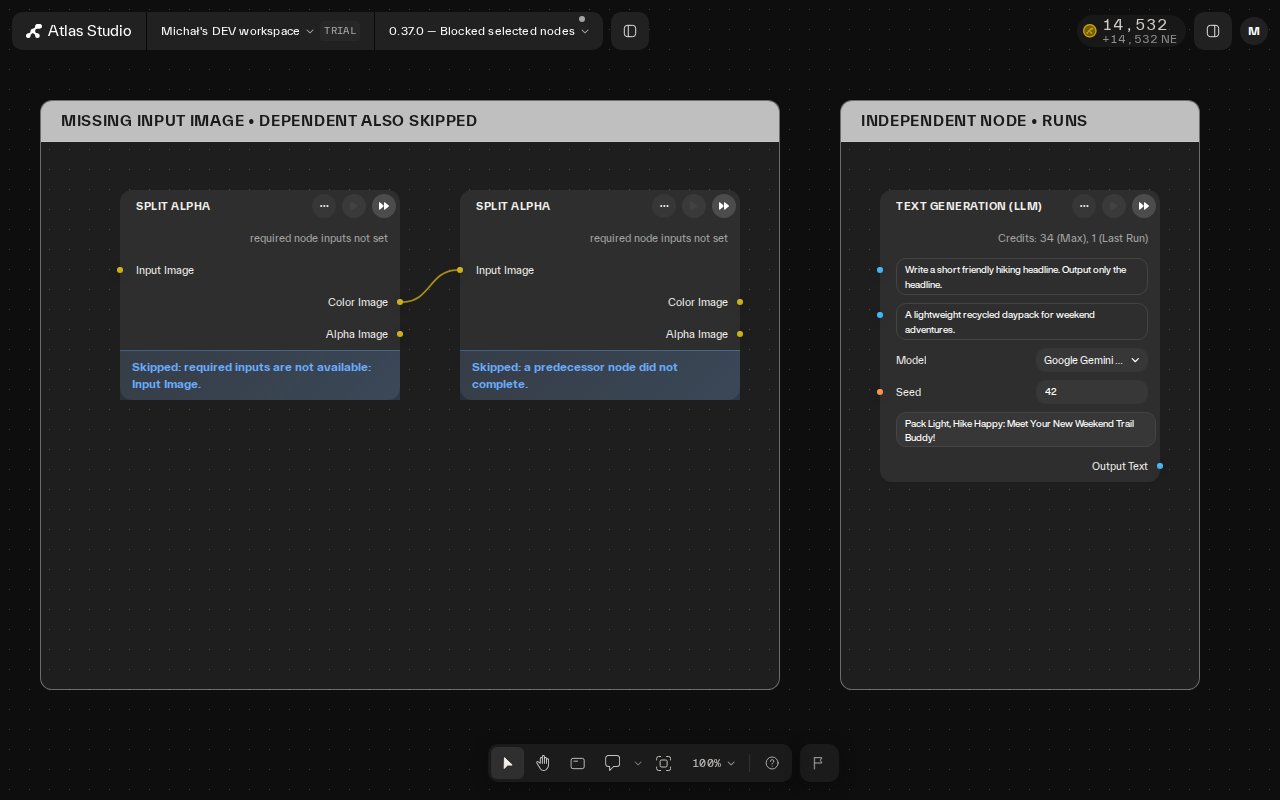
Blocked selections and their selected dependents are skipped while independent selections continue. Skip messages identify missing required fields.

<figure><img src="https://3654894688-files.gitbook.io/~/files/v0/b/gitbook-x-prod.appspot.com/o/spaces%2FR7boiMixMhR4q36Ns33Y%2Fuploads%2F01trA6daTu9nO3UrB0aY%2F29-selected-only-blocked-independent.jpg?alt=media" alt="A missing Input Image skips the first Split Alpha node and its selected dependent; the independent text-generation node still completes."><figcaption><p>A missing Input Image skips the first Split Alpha node and its selected dependent; the independent text-generation node still completes.</p></figcaption></figure>

## Paste an image directly onto the canvas

Press Ctrl+V or Cmd+V on the canvas to upload a clipboard image and create an Input Image node at the pointer. Standard paste uses the browser's native paste event, including in Firefox without an extra asynchronous clipboard-read prompt.

{% embed url="<https://files.gitbook.com/v0/b/gitbook-x-prod.appspot.com/o/spaces%2FR7boiMixMhR4q36Ns33Y%2Fuploads%2F2ctnMeBOhu31xrNlh8EP%2F20260930-1209-33.1379703.mp4?alt=media&token=8ddc991e-1bc1-4549-8bce-637396204443>" %}

Copied graph nodes keep priority over clipboard images. Images take priority over accompanying text, and plain text creates an Input Text node. Pasting inside text editors or the assistant keeps its usual behavior; read-only canvases do not create nodes.

## Choose a node, then its connection field

Drag an input or output connector onto empty canvas to search compatible nodes. Search now shows one row per node. Select a node to choose among its compatible inputs or outputs; a single compatible field creates and connects immediately.

{% embed url="<https://files.gitbook.com/v0/b/gitbook-x-prod.appspot.com/o/spaces%2FR7boiMixMhR4q36Ns33Y%2Fuploads%2FYILYXiT6MQojUlcK2UYO%2F20260930-1153-01.5094601.mp4?alt=media&token=72bd24e9-2dab-49bf-9c6e-976d05b284fe>" %}

Both drag directions keep the existing compatibility and access checks. Back restores your search and group. Single-field choices skip the field-selection step.

## ElevenLabs v4 speech and dialogue

Text to Speech (ElevenLabs) now offers Eleven v4 and Eleven v4 Turbo alongside the existing models.&#x20;

<figure><img src="https://3654894688-files.gitbook.io/~/files/v0/b/gitbook-x-prod.appspot.com/o/spaces%2FR7boiMixMhR4q36Ns33Y%2Fuploads%2FmXNv5oT558bfg87yakHt%2Fimage.png?alt=media&amp;token=44b8a137-01ad-4f93-bc94-202aa54eaa64" alt="" width="263"><figcaption></figcaption></figure>

Text to Dialogue adds v4 for two-speaker A:/B: scripts; Turbo is single-speaker. Eleven v3 remains available and stays the default.

<figure><img src="https://3654894688-files.gitbook.io/~/files/v0/b/gitbook-x-prod.appspot.com/o/spaces%2FR7boiMixMhR4q36Ns33Y%2Fuploads%2FlXTAjk5EQi3JQfoM7jmY%2Fimage.png?alt=media&amp;token=d8f3202f-53c9-4c7d-9c8d-757d2a5f9786" alt="" width="563"><figcaption></figcaption></figure>

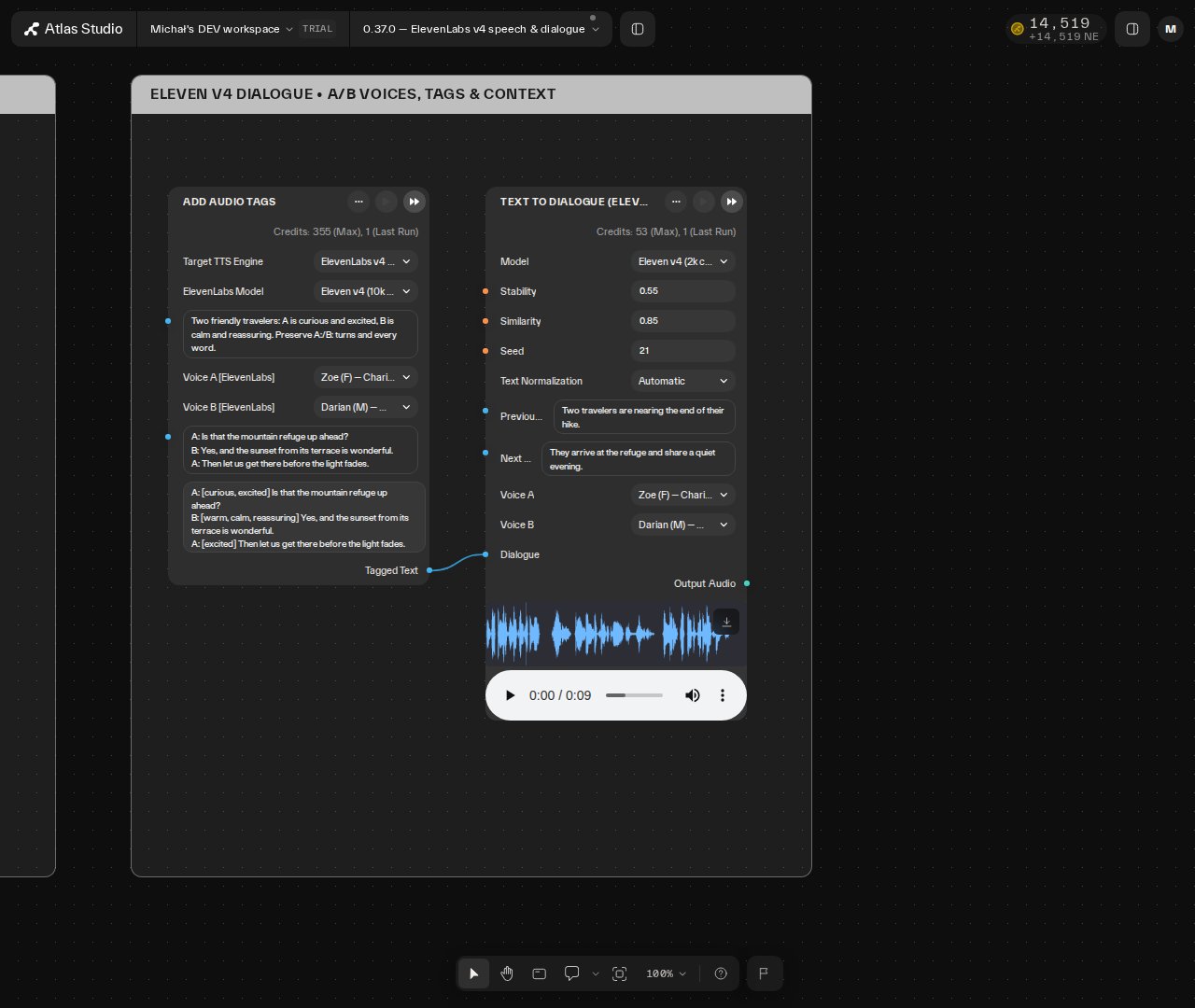
Shape v4 delivery with Stability and Similarity, choose a best-effort Seed, and set Text Normalization to Automatic, On or Off. Previous Text and Next Text provide continuity without being spoken. These controls are available on both v4 speech variants and v4 dialogue.

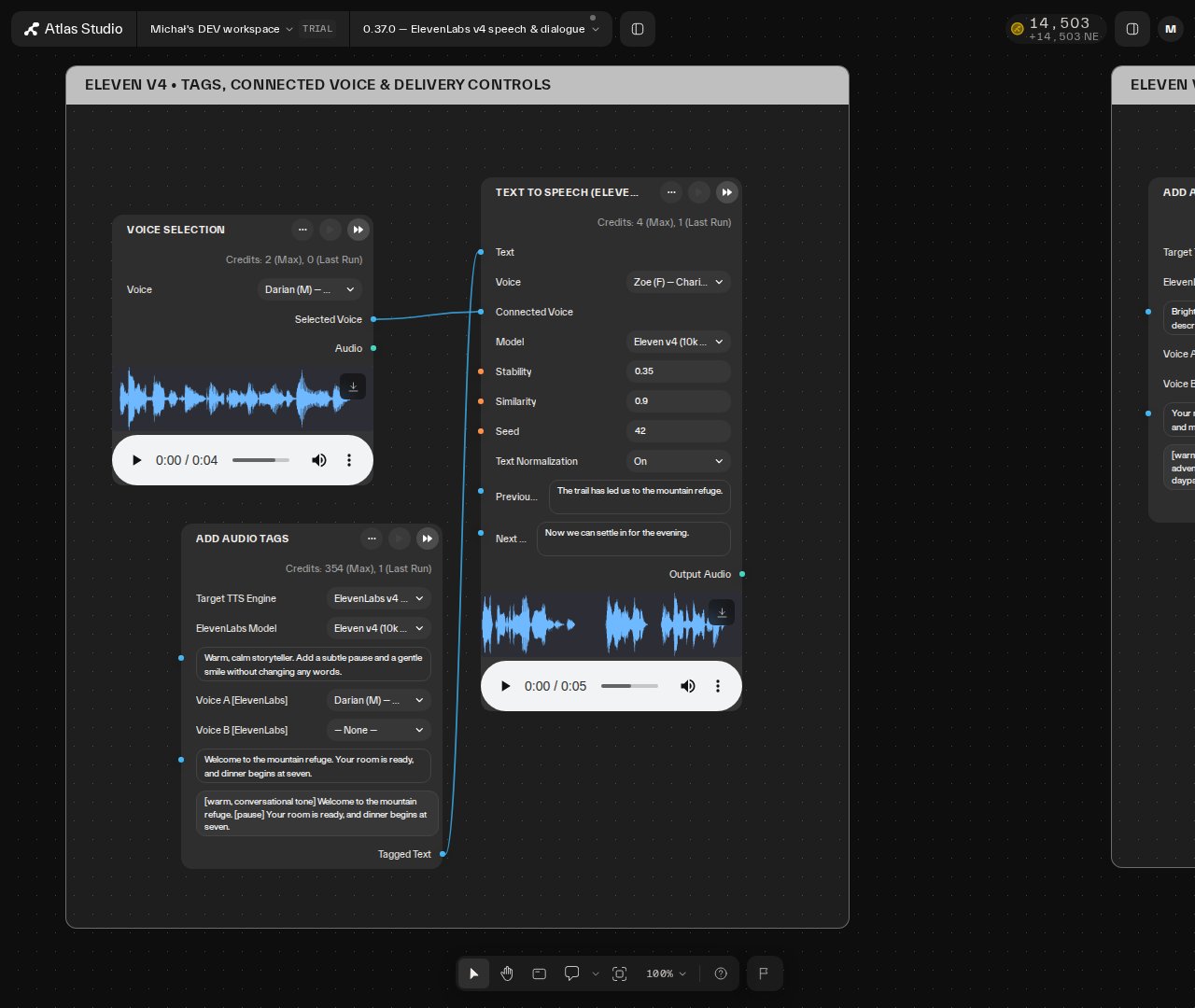
Connect Voice Selection's Selected Voice output to TTS Connected Voice to override its manual voice dropdown.

<figure><img src="https://3654894688-files.gitbook.io/~/files/v0/b/gitbook-x-prod.appspot.com/o/spaces%2FR7boiMixMhR4q36Ns33Y%2Fuploads%2FRBLm7am8SceoGgAqM4VF%2F30-eleven-v4-controls-connected-voice.jpg?alt=media" alt="Successful v4 speech with every new control configured. Darian&#x27;s Selected Voice is connected to Connected Voice while the manual dropdown remains Zoe; Add Audio Tags supplies the spoken text."><figcaption><p>Successful v4 speech with every new control configured. Darian's Selected Voice is connected to Connected Voice while the manual dropdown remains Zoe; Add Audio Tags supplies the spoken text.</p></figcaption></figure>

Atlas accepts up to 10,000 characters for v4 speech and 2,000 spoken characters for v4 dialogue. Use both A: and B: turns for dialogue and choose a voice for each speaker. Existing v3 limits are retained.

<figure><img src="https://3654894688-files.gitbook.io/~/files/v0/b/gitbook-x-prod.appspot.com/o/spaces%2FR7boiMixMhR4q36Ns33Y%2Fuploads%2F8H9QwxzhPbX5NANxSp20%2F32-eleven-v4-dialogue-controls.jpg?alt=media" alt="A tagged A:/B: dialogue with Zoe and Darian, normalization Automatic, all shared controls and a successful playable audio result."><figcaption><p>A tagged A:/B: dialogue with Zoe and Darian, normalization Automatic, all shared controls and a successful playable audio result.</p></figcaption></figure>

## Prepare audio tags for the selected ElevenLabs model

Add Audio Tags now includes an ElevenLabs Model selector for v3, v4 and v4 Turbo. Match it to the downstream TTS or Dialogue node. Provide a delivery direction and optional Voice A for narration, or Voice A and Voice B with A:/B: turns for dialogue.

The node adds descriptive delivery tags while preserving the example's words and speaker turns. It checks the selected model's limit, including added tags, and rejects incompatible speaker structure or over-limit generated text instead of silently truncating it.

<figure><img src="https://3654894688-files.gitbook.io/~/files/v0/b/gitbook-x-prod.appspot.com/o/spaces%2FR7boiMixMhR4q36Ns33Y%2Fuploads%2FHmROkF0QBmSQ15JzRebc%2Fimage.png?alt=media&amp;token=097da185-4869-4fa6-bcf8-18bd96e8554f" alt="" width="300"><figcaption></figcaption></figure>

## Browse the refreshed ElevenLabs voice catalog

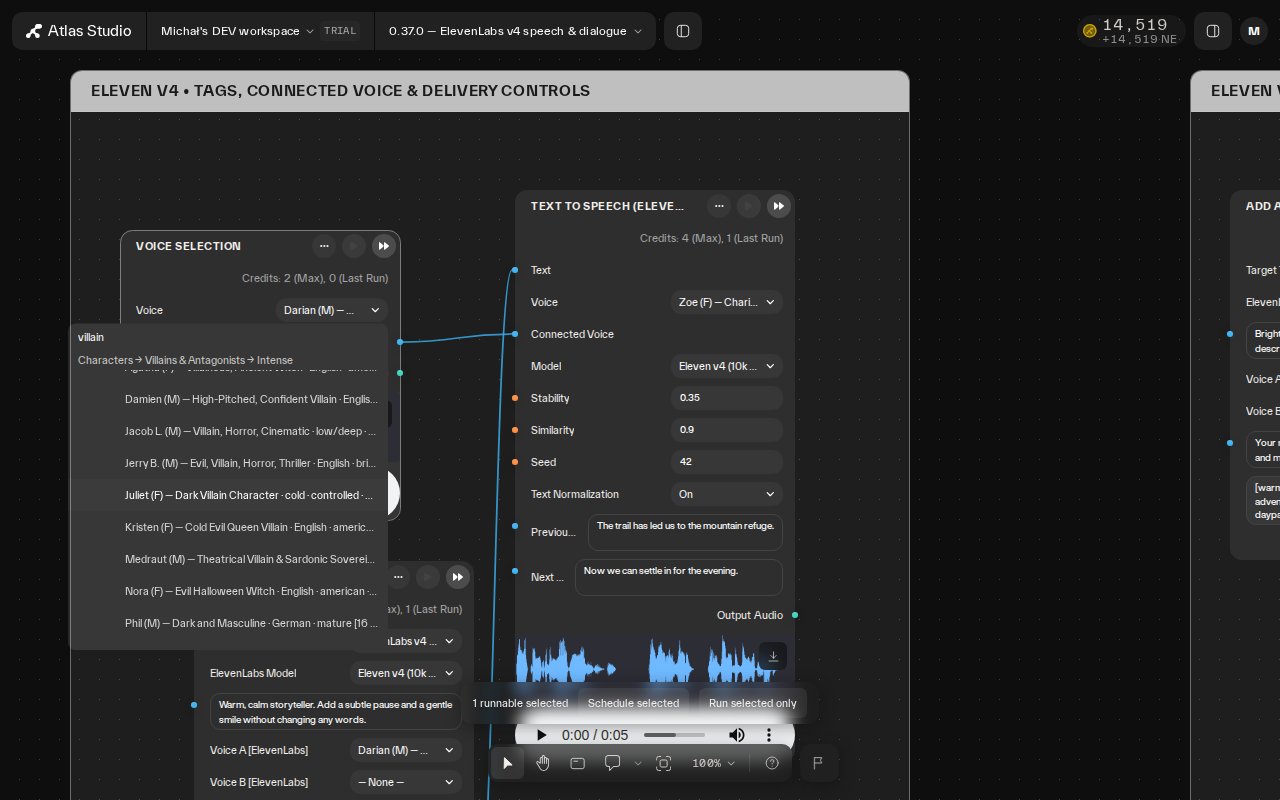
The refreshed catalog organizes voices by category, role and delivery, with full voice names, M/F marks and searchable traits. The current catalog contains 1,577 voices, including new character, game and film voices and verified replacements; availability follows your account and workspace access.

<figure><img src="https://3654894688-files.gitbook.io/~/files/v0/b/gitbook-x-prod.appspot.com/o/spaces%2FR7boiMixMhR4q36Ns33Y%2Fuploads%2FWJW2TMG1yQfJVcHuhA1n%2F34-voice-search-traits.jpg?alt=media" alt="Search combines delivery, role and gender traits: raspy villain (M) finds three matching voices under Characters → Villains &#x26; Antagonists → Raspy."><figcaption><p>Search combines delivery, role and gender traits: raspy villain (M) finds three matching voices under Characters → Villains &#x26; Antagonists → Raspy.</p></figcaption></figure>

A group-path indicator below the search box keeps your current location visible when you scroll past group headers.

<figure><img src="https://3654894688-files.gitbook.io/~/files/v0/b/gitbook-x-prod.appspot.com/o/spaces%2FR7boiMixMhR4q36Ns33Y%2Fuploads%2FigTIqKn7SnjyYa5jxh4C%2F36-voice-group-path.jpg?alt=media" alt="The group path remains visible while browsing and scrolling through voices matching villain."><figcaption><p>The group path remains visible while browsing and scrolling through voices matching villain.</p></figcaption></figure>

New default voices are Zoe and Darian. Saved retired default and unavailable community voice selections are remapped to verified replacements, while saved models, explicit settings, generated audio, layout and connections are preserved.


---

# Agent Instructions
This documentation is published with GitBook. GitBook is the documentation platform designed so that both humans and AI agents can read, navigate, and reason over technical content effectively. Learn more at gitbook.com.

## Querying This Documentation
If you need additional information that is not directly available in this page, you can query the documentation by asking a question.

Perform an HTTP GET request on the following URL with the `ask` and `goal` query parameters:

```
GET https://docs.atlas.design/atlas-ai-studio-overview/release-notes/release-0.37.0.md?ask=<question>&goal=<user_goal>
```

`ask` is the immediate question: it should be specific, self-contained, and written in natural language.
`goal` is what the user is ultimately trying to achieve, the reason they need the answer. Sharing it helps GitBook give you a better, more relevant answer. A goal is most helpful when it describes the outcome the user wants rather than restating the question. For example, with `ask=how do I create an API token`, a goal like `automate deployments from our CI pipeline` lets GitBook tailor the answer to that use case.

The response will contain a direct answer to the question and relevant excerpts and sources from the documentation.

Use this mechanism when the answer is not explicitly present in the current page, you need clarification or additional context, or you want to retrieve related documentation sections.