> For the complete documentation index, see [llms.txt](https://docs.atlas.design/llms.txt). Markdown versions of documentation pages are available by appending `.md` to page URLs; this page is available as [Markdown](https://docs.atlas.design/atlas-ai-studio-overview/node-index/mesh-nodes/animation-nodes.md).
# Animation Nodes
Animation nodes that rig and animate humanoid character meshes: automatic rigging, Mixamo retargeting, Smart Mesh Alignment, and FBX/GLB export.
Animation Nodes are the bridge between generated 3D character meshes and game-ready animated assets. They handle rigging (applying a skeleton to a static mesh), retargeting (mapping animation data onto the rigged skeleton), and full character pipelines that automate the entire concept-art-to-animated-NPC sequence.
## When to use animation nodes
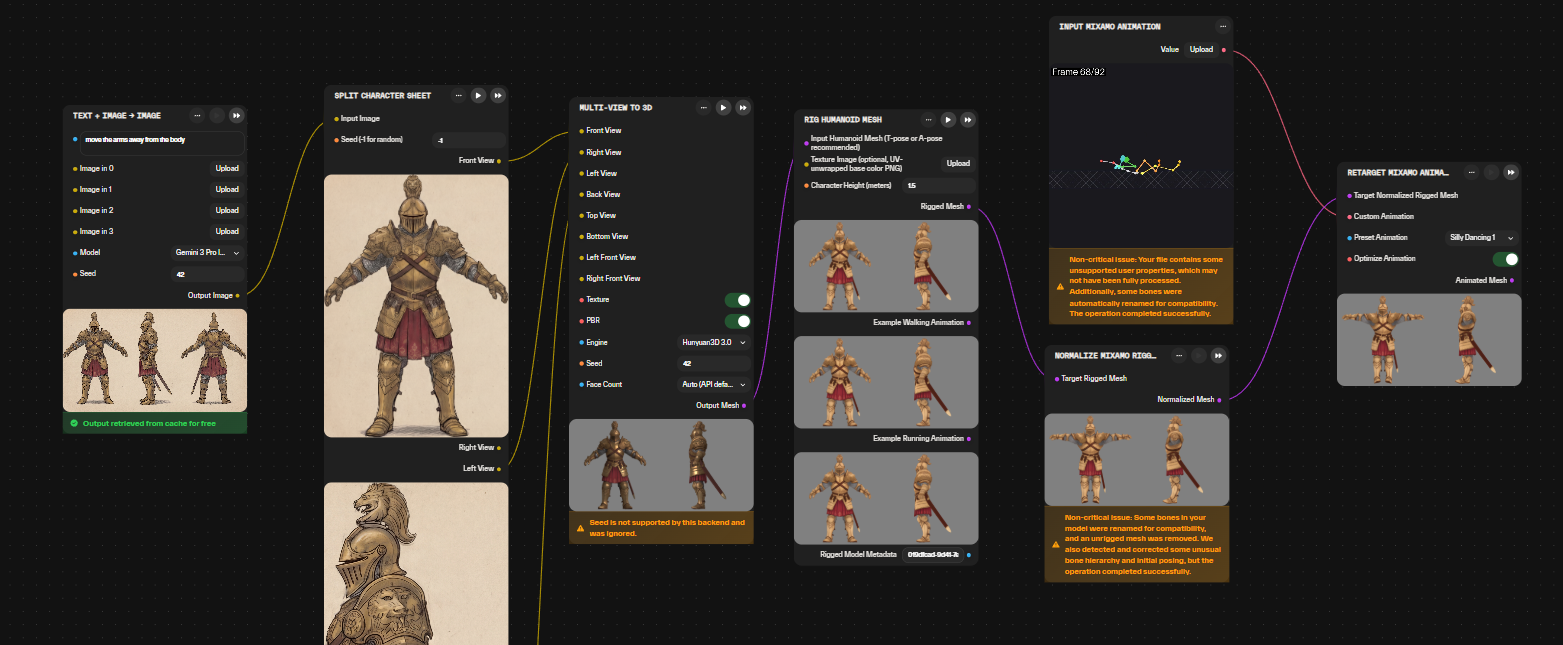
* **Generate playable NPCs from concept art.** Use the Character Workflow node to chain Split Character Sheet → Multi-View to 3D → Rig Humanoid Mesh → Retarget into one automated pipeline. Single-shot from drawing to animated character.
* **Bring AI-generated humanoid characters into a game engine.** Use Rig Humanoid Mesh followed by Animate Rigged Model to skeleton + animate a generated mesh ready for Unity or Unreal import.
* **Retarget Mixamo animations.** Pair Input Mixamo Animation with the retargeting nodes to apply Mixamo's motion library onto generated characters without manual rigging.
* **Smart-place props on characters.** Use Smart Mesh Alignment with natural-language instructions to attach weapons, accessories, or environmental objects to character rigs without manual transform math.
* **Rig and animate Tripo-generated characters.** Tripo-specific rigging and animation nodes are tuned for Tripo's mesh topology.
### Character Workflow
A composite workflow that converts a multi-view character drawing into a rigged, animated 3D mesh ready for game integration. The pipeline chains Split Character Sheet, Multi-View to 3D, Rig Humanoid Mesh, Retarget Rigged Mesh, and Retarget Mixamo Animation into a single automated process.
* **Input**: A character sheet image showing front, side, and back views of a character design.
* **Split Character Sheet**: Automatically extracts individual orthographic views from the input sheet.
* **Multi-View to 3D**: Generates a 3D mesh by interpreting the separated views.
* **Rig Humanoid Mesh**: Applies a skeleton armature suitable for humanoid characters.
* **Retarget Rigged Mesh**: Adjusts the rig to a T-pose or reference pose.
* **Retarget Mixamo Animation**: Maps animation clips (e.g., from Mixamo) onto the generated rig.
* **Output**: A fully rigged, animated character mesh exported in standard 3D formats.
Useful for rapid prototyping of NPC models, testing character designs in-engine, and generating background characters from concept art.
{% embed url="" %}
### Animate Nodes
A pair of connected nodes that rig and animate AI-generated humanoid meshes. The Rig Humanoid Mesh node applies a skeletal armature to a 3D character model, while the Animate Rigged Mesh node applies preset animation clips to the rigged result.
* **Rig Humanoid Mesh Input**: Accepts a 3D human mesh, with optional texture image and character height parameters for scale calibration.
* **Skeleton Generation**: Automatically places a humanoid bone hierarchy (spine, limbs, head) based on mesh topology.
* **Animate Rigged Mesh**: Takes the rigged output and applies selectable animation presets (walk, run, idle, combat, etc.).
* **Animation Selection**: Provides a dropdown or picker interface for choosing from built-in motion clips.
* **Output**: A rigged and animated 3D character ready for export in standard formats (FBX, GLB).
* **Pipeline Position**: Typically follows mesh generation nodes and precedes export or retargeting stages.
Useful for quickly animating procedurally generated NPCs, testing character proportions with motion, and prototyping dialogue or cutscene performances.
### Tripo Mesh Nodes
A paired set of nodes designed to rig and animate 3D character meshes generated by Tripo workflows. The Rig Tripo Mesh node applies a skeletal armature to the model, while the Animate Tripo Mesh node attaches preset animation clips to the rigged character.
* **Rig Tripo Mesh**: Accepts a Tripo-generated mesh and applies a skeleton with bone hierarchy and automatic weight painting.
* **Multi-Creature Support**: Auto-detects or configures skeletons for **Bipeds** (humans), **Quadrupeds** (four-legged animals), **Hexapods/Octopods** (insects/spiders), **Serpentine** (snakes), **Avians** (birds), and **Aquatics** (fish).
* **Animate Tripo Mesh**: Takes the rigged output and applies preset animation clips such as idle, walk, or combat cycles.
* **Sequential Workflow**: The rig node must precede the animation node in the pipeline; animations require an existing skeleton structure.
* **Preview Support**: Both nodes provide real-time viewport preview of the rigged mesh and active animation playback.
* **Export Ready**: Output includes both geometry and animation data in standard 3D formats for engine integration.
Useful for rapidly prototyping animated NPCs, testing character movement systems, and generating background characters from Tripo-created models.
### Tripo Mesh Workflow
A composite workflow that processes Tripo-generated 3D meshes through rigging and animation stages to produce game-ready animated characters. The pipeline integrates mesh preparation, skeletal rigging, and animation retargeting into a single automated sequence.
* **Input**: A 3D mesh of a character preferably in T-pose or A-pose, typically from text or image prompts.
* **Rig Tripo Mesh**: Applies a skeletal armature to the input mesh, automatically detecting joint positions and assigning bone weights.
* **Animate Tripo Mesh**: Retargets animation clips onto the rigged character, adjusting for the specific bone structure and proportions.
* **Animation Library**: Supports standard animation types including locomotion cycles, idle poses, and action sequences.
* **Bone Mapping**: Automatically maps generic animation data to the Tripo mesh's unique skeleton hierarchy.
* **Output**: An animated 3D character with embedded skeleton and animation data, ready for export.
Useful for rapidly prototyping animated NPCs from text descriptions, testing character concepts with motion, and generating background characters with basic animation cycles.
### Atlas Rig (T-Pose Humanoid)
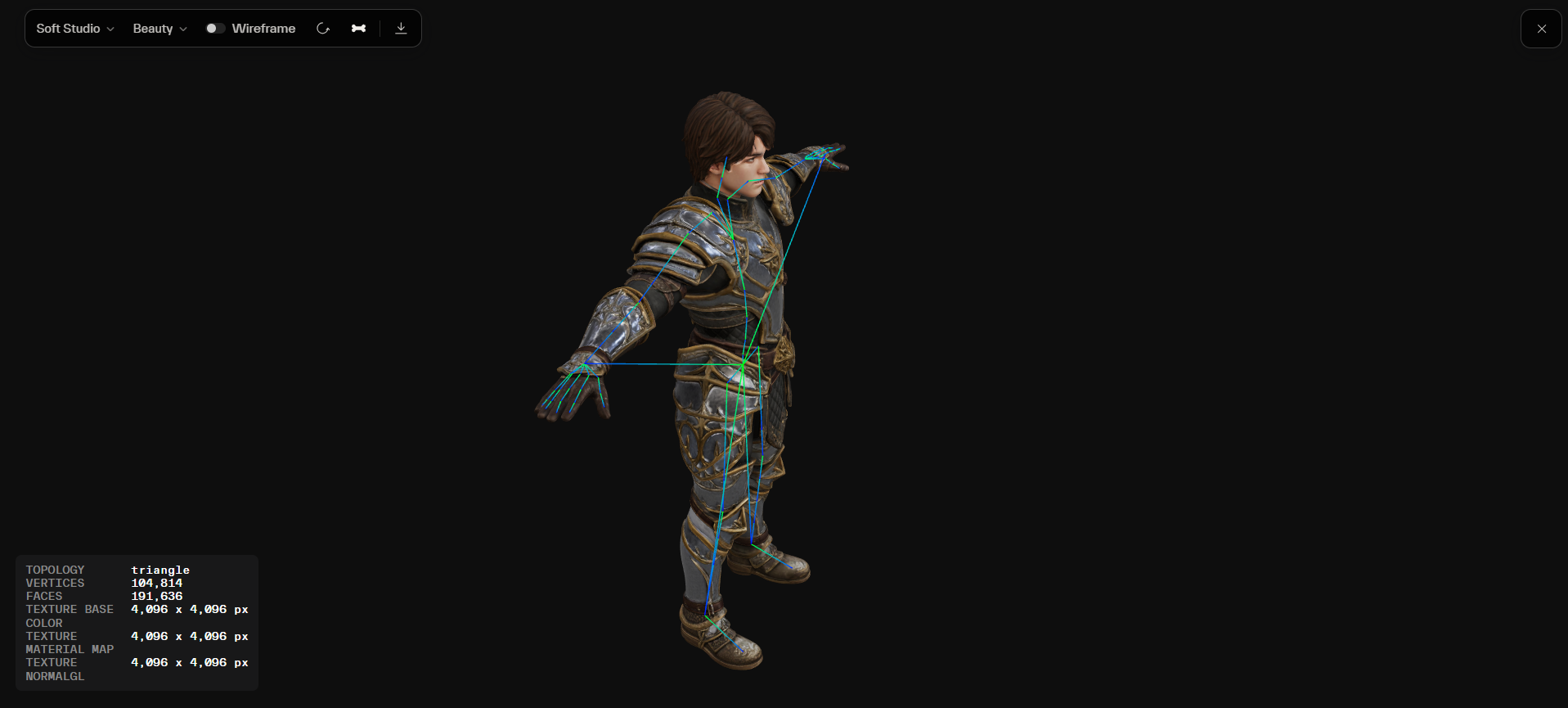
Generates a T-pose humanoid skeleton on a character mesh and outputs a rigged model with default animation previews. Accepts a humanoid mesh and produces a rig ready for animation and game-engine import.
* **Input**: A humanoid character mesh to be skeleton-rigged.
* **Output**: A rigged GLB plus default animation previews for immediate playback verification.
* **Hand Processing**: Selectable Procedural, AI, AI\_2, and combined modes for controlling finger and hand rig fidelity.
* **Rotation Repair**: Optional pass that corrects joint orientation issues on the generated skeleton.
* **Worker Warnings**: Surfaces processing warnings during rigging to flag mesh or topology problems.
Useful for preparing AI-generated humanoid characters for animation, producing NPC skeletons from concept meshes, and building rigged characters ready for engine integration.
{% embed url="" %}
Rigged character showing individually rigged hands, distinct from other rigging backends that leave hands as a single rigid block. Close-up of the rigged hands performing a typing animation, demonstrating finger-level rig detail.
### Meshy Text to Motion
Generates a standalone, Mixamo-compatible character animation from a text prompt. Produces motion clips ready to retarget onto rigged characters without manual keyframing.
* **Text Prompt**: Natural language description of the desired motion (e.g., "walk forward," "swing a sword," "wave hello").
* **Mode**: Selectable Prime or Swift generation mode, trading generation speed against motion fidelity.
* **Duration**: Adjustable clip length from 2 to 10 seconds.
* **Output**: A standalone character animation in a Mixamo-compatible format, suitable for retargeting onto humanoid rigs.
* **Access**: Requires animation-node access.
{% embed url="" %}
Useful for: prototyping NPC movement, generating idle and action loops for background characters, and building custom motion clips for cutscenes from text descriptions.
## Common pitfalls
* **Skipping the height parameter on Rig Humanoid Mesh.** Without an accurate character height value, joint positions are misscaled and the applied animation looks off.
* **Rigging a mesh in an action or dynamic pose.** Skeleton placement is derived from mesh topology, so non-standard poses cause joint placement errors. Regenerate the source mesh in T-pose or A-pose before rigging.
* **Running Animate Tripo Mesh before Rig Tripo Mesh.** Animation nodes attach clips to an existing skeleton, so the rig node must run first; reversing the order leaves nothing for the animation to bind to.
## Related nodes
* [Mesh Nodes](/atlas-ai-studio-overview/node-index/mesh-nodes.md) — upstream generation, transformation, and optimization nodes that produce the meshes fed into animation workflows.
* [Input Nodes](/atlas-ai-studio-overview/node-index/input-nodes.md) — Input Mixamo Animation supplies external animation clips for Retarget Mixamo Animation to map onto generated characters.
* [Image Nodes](/atlas-ai-studio-overview/node-index/image-nodes.md) — generate or refine the character art that feeds Split Character Sheet and Multi-View to 3D inside the Character Workflow.
* [Utility Nodes](/atlas-ai-studio-overview/node-index/utility-nodes.md) — Split Character Sheet prepares multi-view character sheets for 3D generation; LLM nodes can parametrize animation selection from text.
* [3D Generation Best Practices](/atlas-ai-studio-overview/node-index/mesh-nodes/3d-generation-best-practices.md) — backend and input-prep guidance affecting the starting mesh an animation workflow receives.
## Frequently asked questions
**Can I animate non-humanoid characters?**
Yes. While Rig Humanoid Mesh expects humanoid topology, Rig Tripo Mesh can be used for different creatures like **Quadrupeds** (four-legged animals), **Hexapods/Octopods** (insects/spiders), **Serpentine** (snakes), **Avians** (birds), and **Aquatics** (fish).
**What animation clips can I apply?**
Animate Rigged Mesh applies selectable preset clips from a built-in library covering locomotion (walk, run), idle poses, and combat cycles. For Mixamo clips, supply an FBX through Input Mixamo Animation and let Retarget Mixamo Animation map it onto the rigged character.
**Can I use custom keyframe animation?**
The animation nodes are preset-driven. Author custom keyframe animation in external tools and bring it in through Input Mixamo Animation for retargeting.
**What format does the rigged, animated character export in?**
FBX and GLB. The export includes vertex geometry, UV mapping, material assignments, the humanoid skeleton with joint hierarchy and bone weights, and the retargeted animation data.
**Why does my character look distorted after rigging?**
The two usual causes are a source mesh that is not in a standard pose and an incorrect height value. Regenerate the mesh in T-pose or A-pose and set the Rig Humanoid Mesh character height to the intended in-game scale.
**Can Smart Mesh Alignment attach props to a specific bone?**
No. Smart Mesh Alignment positions and rotates one mesh onto an anchor mesh from a natural-language instruction and anchor geometry, interpreting relationships like "above," "inside," or "next to." It suits one-off placement during workflow design. For bone-specific socket attachment at runtime, use the engine's native socket system after import.
**How do I rig and animate a Tripo-generated mesh?**
Use the Tripo Mesh Nodes pair or the Tripo Mesh Workflow. Rig Tripo Mesh applies a humanoid skeleton with automatic weight painting, then Animate Tripo Mesh applies preset clips. The Tripo Mesh Workflow combines both stages into one automated sequence and maps generic animation data to the mesh's skeleton hierarchy.
**What does the Character Workflow produce from a character sheet?**
From a sheet showing front, side, and back views it produces a rigged, animated 3D mesh, chaining Split Character Sheet to extract the views, Multi-View to 3D for geometry, Rig Humanoid Mesh for the skeleton, Retarget Rigged Mesh to set a reference pose, and Retarget Mixamo Animation to map clips.
**What is the difference between Rig Humanoid Mesh and Rig Tripo Mesh?**
Rig Humanoid Mesh (Meshy Engine): Strictly for humans/bipeds (T-pose/A-pose) and includes built-in walking/running preview animations. Rig Tripo Mesh (Tripo Engine): For any creature shape (quadrupeds, birds, spiders, fish, snakes) as well as humans.
* **Use *****Rig Humanoid Mesh***** for**: Standard human characters, heroes, enemies, or humanoids.
* **Use *****Rig Tripo Mesh***** for**: Animals, monsters, monsters with wings, spiders, or any non-humanoid creatures.
---
# Agent Instructions
This documentation is published with GitBook. GitBook is the documentation platform designed so that both humans and AI agents can read, navigate, and reason over technical content effectively. Learn more at gitbook.com.
## Querying This Documentation
If you need additional information that is not directly available in this page, you can query the documentation by asking a question.
Perform an HTTP GET request on the following URL with the `ask` and `goal` query parameters:
```
GET https://docs.atlas.design/atlas-ai-studio-overview/node-index/mesh-nodes/animation-nodes.md?ask=&goal=
```
`ask` is the immediate question: it should be specific, self-contained, and written in natural language.
`goal` is what the user is ultimately trying to achieve, the reason they need the answer. Sharing it helps GitBook give you a better, more relevant answer. A goal is most helpful when it describes the outcome the user wants rather than restating the question. For example, with `ask=how do I create an API token`, a goal like `automate deployments from our CI pipeline` lets GitBook tailor the answer to that use case.
The response will contain a direct answer to the question and relevant excerpts and sources from the documentation.
Use this mechanism when the answer is not explicitly present in the current page, you need clarification or additional context, or you want to retrieve related documentation sections.